Desktop and lock-screen wallpapers from PowerShell
Every machine, labelled on its own desktop.
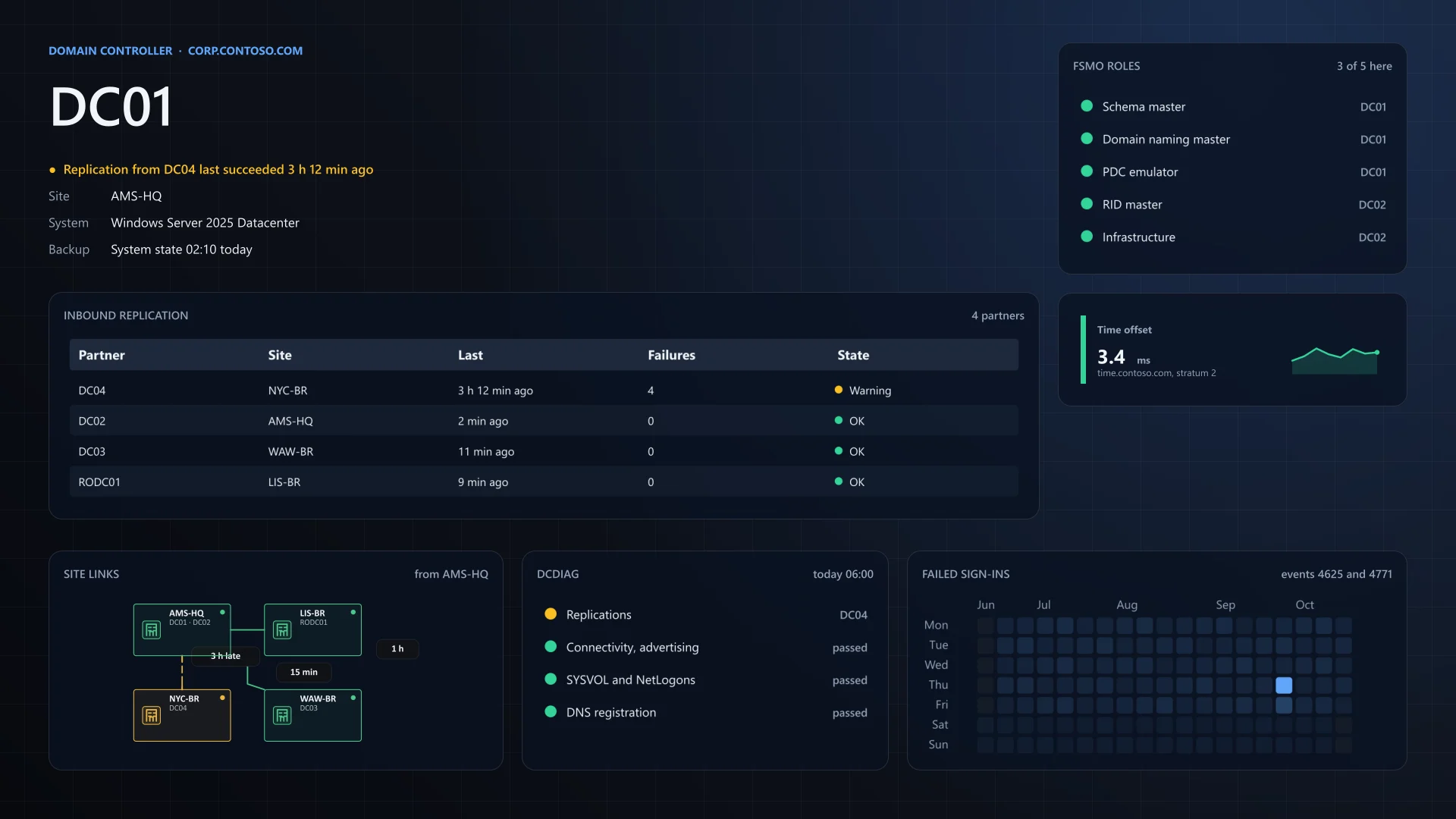
PowerBGInfo draws a machine's facts, health and charts onto its wallpaper and lock screen. You describe the layout in PowerShell or JSON, and it renders the same way on every machine you deploy it to.
Install-Module PowerBGInfo -Scope CurrentUser
Invoke-BGInfo -Path .\helpdesk.json
# Desktop, lock screen and every monitorSupported Windows desktops and servers. PowerShell 5.1 and 7, desktop and lock screen, every monitor, every profile.
pwsh -c "Install-Module PowerBGInfo"
pwsh -c "Get-BGInfoCapability"
pwsh -c "Invoke-BGInfo -Path ./helpdesk.json"
Preview The current user's wallpaper through AppKit on each reported screen. The lock screen is not available.
pwsh -c "Install-Module PowerBGInfo"
pwsh -c "Get-BGInfoCapability"
pwsh -c "Invoke-BGInfo -Path ./helpdesk.json"
Preview GNOME through GSettings and KDE Plasma through D-Bus. Other desktops render to a file.
New-BGInfo -Target File -ConfigurationDirectory ./out -OutputFileName machine.png {
New-BGInfoBackground -Width 1920 -Height 1080
New-BGInfoValue -BuiltinValue HostName -Name 'Computer'
}
# No desktop needed: writes ./out/machine.pngPreview Render a PNG without a desktop, for documentation, signage or a VM template. Set the width and height yourself.
Three tools for the same desktop
PowerBGInfo shows what a machine is and how it is doing. InformationBox lets the person at the desk act on it. DesktopManager controls the desktop itself. Use one, or let them work together.
- Show
PowerBGInfo
Facts and health drawn onto the wallpaper and lock screen. Everyone at the machine sees them without clicking anything, and you deploy it to whole fleets.
- For
- Admins, helpdesks, labs, servers, signage
- Ships as
- PowerShell module, CLI, JSON layouts
- Runs on
- Windows; macOS and Linux in preview
- Ask and fix
InformationBox
A self-service window for the person at the desk. Check status, copy an IP address, open a ticket or run an approved fix without calling the helpdesk.
- For
- End users and the helpdesk behind them
- Ships as
- Portable Windows app, white-label
- Runs on
- Windows
- Control
DesktopManager
Monitors, windows, wallpaper, audio, power, devices and input. Use the app with hotkeys and rules, or automate it from PowerShell, C#, a CLI or an AI agent.
- For
- Power users, admins, automation, AI agents
- Ships as
- App, 133 cmdlets, NuGet package, CLI, MCP server
- Runs on
- Windows; display and wallpaper API on macOS and Linux
Twelve wallpapers, each with one job
Each one answers a question for the person in front of the screen, in light and dark, at any resolution. Every script starts with fixed sample data, so you can reproduce the render before you connect your own sources.

 Server status Uptime, disks, services and network of a production server.
 Help desk How to get help, plus the details support asks for.
 Hyper-V host Room for another VM, and which VMs use the host.
 Patch day When this PC restarts, and how the rollout is going.
 Branch office PC Which site, is the link up, and how to get help.
 Kiosk or signage One bold message and a code to scan for the details.
Get started
Install the module from the PowerShell Gallery and render to a file first, so you can check the layout before anything changes on a desktop.
Install the module
Install-Module PowerBGInfo -Scope CurrentUser
The module works in Windows PowerShell 5.1 and in PowerShell 7.4 or later. It needs no separate helper modules; run the same command again to update.
Render a preview to a file
New-BGInfo -Theme Aurora -ThemeMode Dark -Target File {
    New-BGInfoValue -BuiltinValue HostName -Name 'Computer'
    New-BGInfoValue -BuiltinValue FullUserName -Name 'User'
    New-BGInfoValue -BuiltinValue OSName -Name 'Windows'
    New-BGInfoValue -BuiltinValue IPv4Address -Name 'IP address'
    New-BGInfoValue -BuiltinValue Uptime -Name 'Up for'
    New-BGInfoChart -Region Right -Kind Gauge -Metric MemoryPercent `
        -Title 'Memory used' -Maximum 100 -ValueSuffix ' %'
} -ConfigurationDirectory C:\Temp\PowerBGInfo -OutputFileName preview.png
-Target File writes preview.png and leaves the desktop alone. The built-in values read the machine the script runs on, so every machine gets its own wallpaper from the same script.
Set it as the wallpaper
New-BGInfo -Theme Aurora {
    New-BGInfoValue -BuiltinValue HostName -Name 'Computer'
    New-BGInfoValue -BuiltinValue OSName -Name 'Windows'
} -ConfigurationDirectory C:\ProgramData\PowerBGInfo -WallpaperFit Fill
Without -Target, New-BGInfo sets the wallpaper for the account that runs it. On Windows, -AllUsers stages it for every profile, and -Target LogonScreen or -Target Both sets the lock screen too; those need an elevated session. One run applies one image; run it again to refresh the values.
Run it in production
PowerBGInfo has no refresh schedule of its own: each run renders the image, applies it once and exits. To keep the values current, run it again at sign-in, at unlock or on a timer, from the tool that already manages the machines.
| Route | When to use it | Guide |
|---|---|---|
| Task Scheduler | Standalone machines and labs, or any fleet where another tool runs the registration script once. The most direct way to refresh at sign-in, at unlock and on a timer, in the user's own session. | Task Scheduler guide |
| Group Policy | Active Directory domain-joined PCs and session hosts. A Group Policy Preferences task runs it for each user, and the same GPO can carry the execution policy and, on Enterprise and Education, the lock screen policy. | Group Policy guide |
| Intune | Microsoft Entra joined or hybrid joined devices. A Win32 app installs the module and the script and registers the per-user task; platform scripts, Remediations and the Personalization CSP cover the cases around it. | Intune guide |
| Configuration Manager | Devices managed by Configuration Manager, including co-managed devices where the apps workload stays with it. An application installs the module and registers the same task. | Configuration Manager guide |
| Remote Desktop, AVD, Windows 365 | Session hosts and AVD multi-session run the task in every session, with a per-user output folder and a fresh render on reconnect; LoggedOnUser names the user of the session being rendered. AVD personal desktops and Cloud PCs work like a physical PC. | Remote Desktop, AVD, Windows 365 guide |
What needs admin
Setting your own wallpaper and -Target File need no elevation. -AllUsers, -Target LogonScreen and -Target Both do, and so do installing the module for all users and registering a task for every user or for SYSTEM, once per machine. Run the wallpaper task itself as a limited user.
Signing
Evotec signs its module releases with Authenticode. Under the AllSigned execution policy, add the publisher's certificate to Trusted Publishers so an unattended task never stops at a prompt, and sign your own wallpaper script with your code-signing certificate.
Every monitor
Get-BGInfoMonitor returns each monitor's index, device name, primary flag, bounds and scale (-Primary returns only the main one), needs no elevation and works under Constrained Language Mode. Loop over it, pass -MonitorIndex and give each monitor its own -OutputFileName, as Examples/Run.BGInfo.PerMonitor.ps1 does. PowerBGInfo never draws on its own earlier output, so repeated runs do not stack the text.
Keeping logon fast
Prefer a scheduled task to a synchronous logon script, so the desktop never waits. Time-box each data source at 5 to 15 seconds; Get-BGInfoSystemInfo already limits each of its queries to five. Give the task an execution time limit so a stuck run cannot pile up.
Where it runs
Windows is supported today. macOS, Linux and headless rendering are in preview and ship with the next release. Each platform states what it can and cannot do, so a render never pretends a desktop accepted it.
- Windows Supported Windows desktops and servers. PowerShell 5.1 and 7, desktop and lock screen, every monitor, every profile.
- macOS Preview The current user's wallpaper through AppKit on each reported screen. The lock screen is not available.
- Linux Preview GNOME through GSettings and KDE Plasma through D-Bus. Other desktops render to a file.
- Servers and CI Preview Render a PNG without a desktop, for documentation, signage or a VM template. Set the width and height yourself.